Getting started with AccuLLM
GuideWhat AccuLLM is, how to set up a brand and start tracking prompts, and what the dashboard, prompt list, competitors and sources show you.
What is AccuLLM?
AccuLLM lets you track prompts so you can monitor how your brand is represented in generative AI across leading LLM search engines. ChatGPT, Google's AI Overviews and AI Mode are currently supported, with more engines coming soon.
Performance in LLM answers is measured in visibility, sentiment, rank, sources cited and brands mentioned. Your competitor brands are seeded automatically, and you get prompt suggestions across relevant prompt categories and search intents.
As part of the AccuRanker platform, AccuLLM is fully integrated with other platform features such as user permissions, workspace management, advanced filtering, flexible tagging, API access, and third-party integrations such as BigQuery and Looker Studio.
You can also ask for your AccuLLM data in ChatGPT, Claude and other AI assistants through the AccuRanker MCP, which is included in every plan.
Start tracking prompts
To start tracking prompts, go to the Brands tab under AccuLLM and click Add brand. A three-step wizard guides you through the setup.
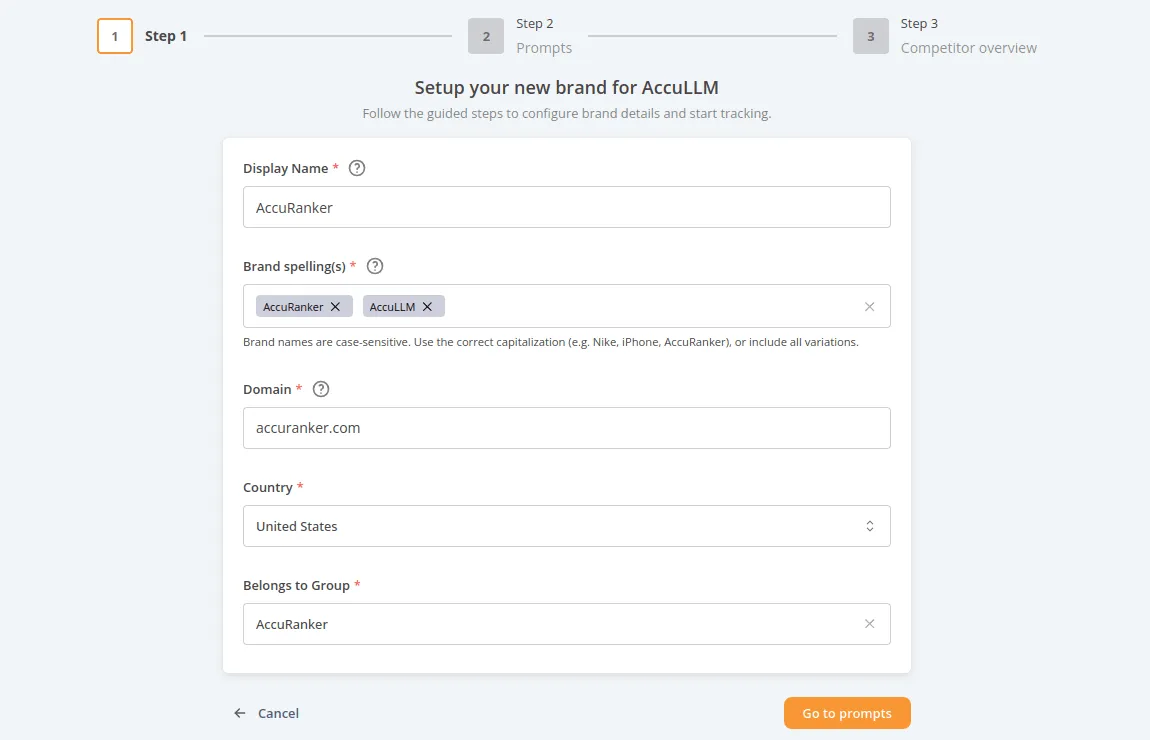
Step 1: Set up your brand for LLM tracking
Enter your brand's display name and fill in at least one brand spelling. We suggest you provide more than one spelling, as we use these to identify your brand in prompt responses.
Enter your domain and choose the default country. The country determines where we make prompt requests. You can select other countries once your brand is set up.
Choose a group to which the brand belongs. This way, you can categorize your brands and control which groups and domains each user can access.
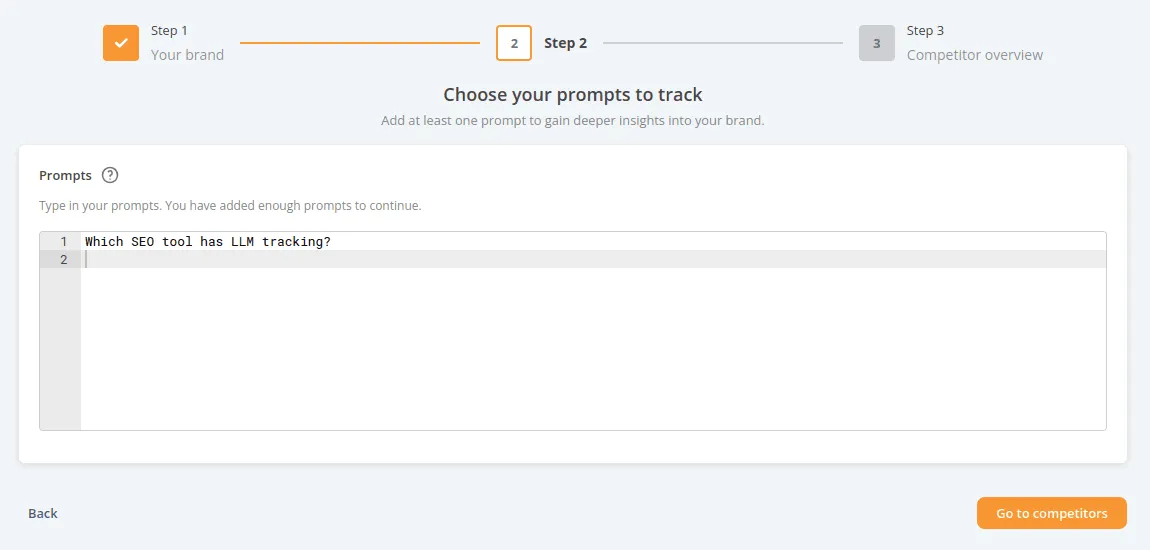
Step 2: Prompts
Select a minimum of one prompt to track. If you already know which prompts you want to track, add them to the list.
If you need inspiration, you can access the prompt suggestions once setup is completed. These are based on what the LLMs and Google know about your brand. We provide different categories to which your brand belongs and assign each prompt a search intent, to help you track the right prompts.
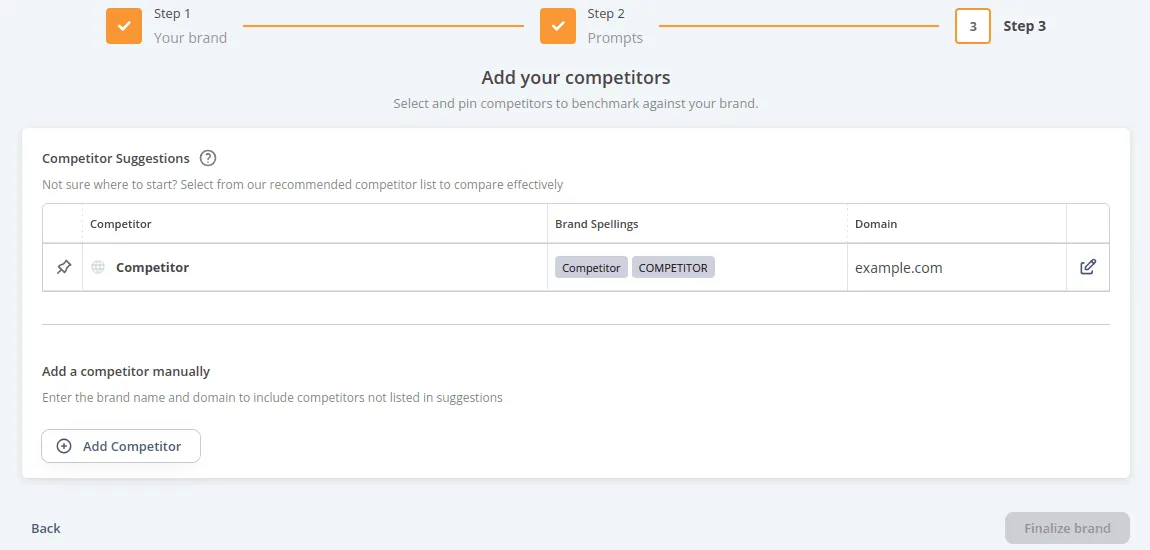
Step 3: Competitor overview
Pin at least one competitor from the competitor list. You can add more competitors or leave the irrelevant ones unpinned. When you are done, your pinned competitors appear in the graphs. You can always change your pinned competitors.
We suggest you review the automatically generated brand spellings, as we use these to identify your competitors in prompt responses.
Dashboard
The dashboard gives you an overview of the most important LLM metrics, making it quick to understand your LLM performance at a glance. You can customize it by dragging and dropping the KPIs and widgets to fit your needs.
The filter bar lets you narrow down the data you see. The filters selected influence all the data in the respective tabs.
The guide on LLM metrics and advanced concepts explains how the following metrics and KPIs are calculated.
KPIs
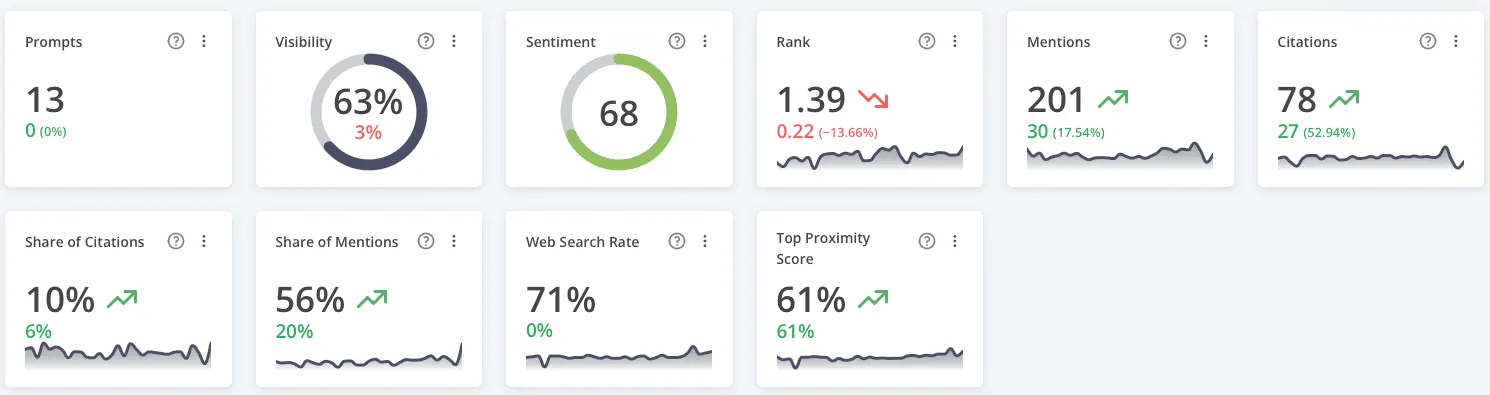
The boxes at the top of your dashboard are KPIs. They show numerical data and indicate trends, showing whether metrics are moving upwards or downwards over your selected date range.
- Prompts: the number of prompts you track.
- Visibility: your average visibility score, based on whether your brand appears in each prompt response.
- Sentiment: an average sentiment score from 1 to 100, depending on whether the LLMs talk positively, neutrally or negatively about your brand.
- Rank: your average rank across the prompts you track.
- Mentions: the total number of times your brand is mentioned across all your prompt responses.
- Citations: the total number of times your domain is cited across all your tracked prompt responses.
- Share of citations: the percentage of citations owned by your domain across all filtered prompts.
- Share of mentions: the percentage of brand mentions attributed to your brand in the selected prompt set.
- Web search rate: the percentage of prompt responses that include web search results.
- Top Proximity Score: how early a brand appears in prompt responses. Earlier mentions score higher.
Widgets
The boxes below the KPIs are widgets that visually represent your data. From the options menu in the top right corner of each widget, you can download the widget as an image or, in some cases, download the data as a CSV file.
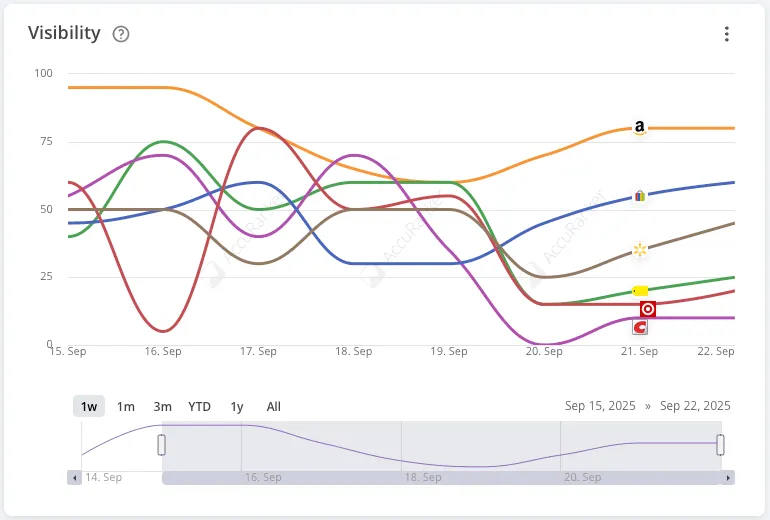
Visibility shows you and your competitors' visibility over time. The orange line always represents your brand. You can remove a competitor from the graph by clicking its brand icon; this does not affect your pinned competitors.
Winners and losers shows the prompts that gained or lost the most visibility across the LLM engines, with rank deciding when visibility is unchanged.
Rank presents you and your competitors' average rank over time across the LLM engines.
Ranking distribution shows the distribution of ranks grouped into ranges of average rank: under 2, 2 to under 6, 6 to under 10, 10 to 50 and not ranking.
Sources lists the domains that are most frequently cited, and Source landing pages lists the landing page URLs most frequently cited, with the number of prompts each is cited in.
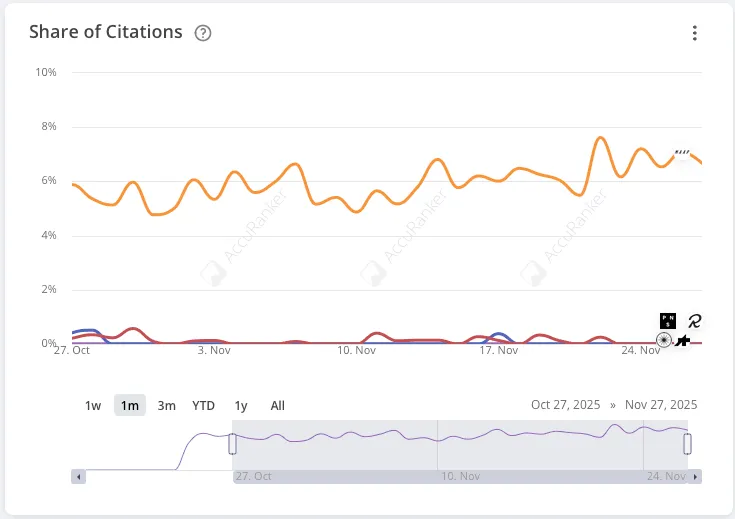
Share of citations shows the percentage of citations owned by your domain across all filtered prompts, compared with your competitors over time.
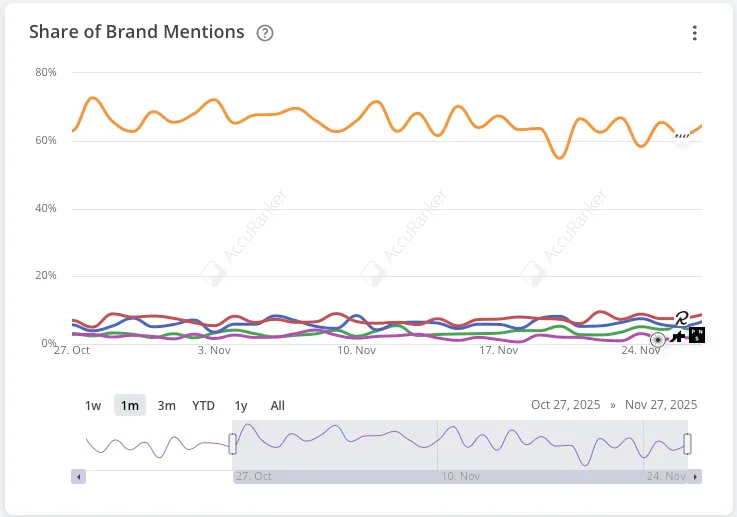
Share of mentions shows the percentage of brand mentions attributed to your brand in the selected prompt set, over time.
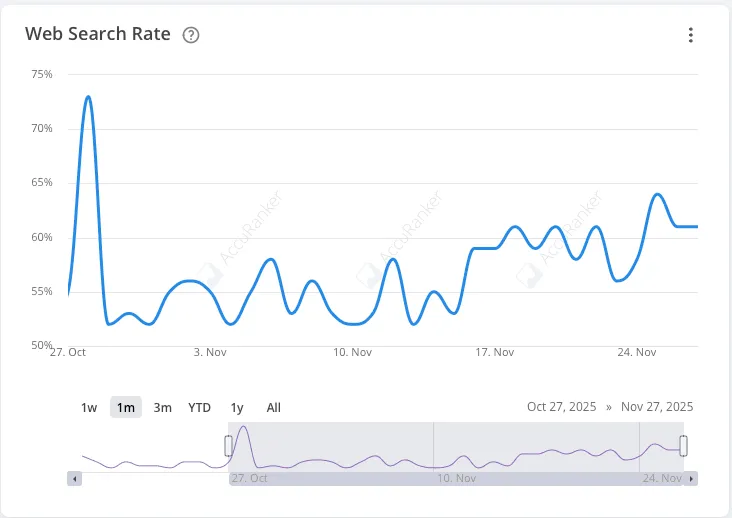
Web search rate indicates the percentage of prompt responses that include web search results. A 50% web search rate means the LLM searched the web to answer half of the prompts you track that day.
Top Proximity Score shows the average score over time for all prompts in the current filtering: how early your brand first appears in the response, based on the character index of the first mention as a proportion of the response length.
Prompts
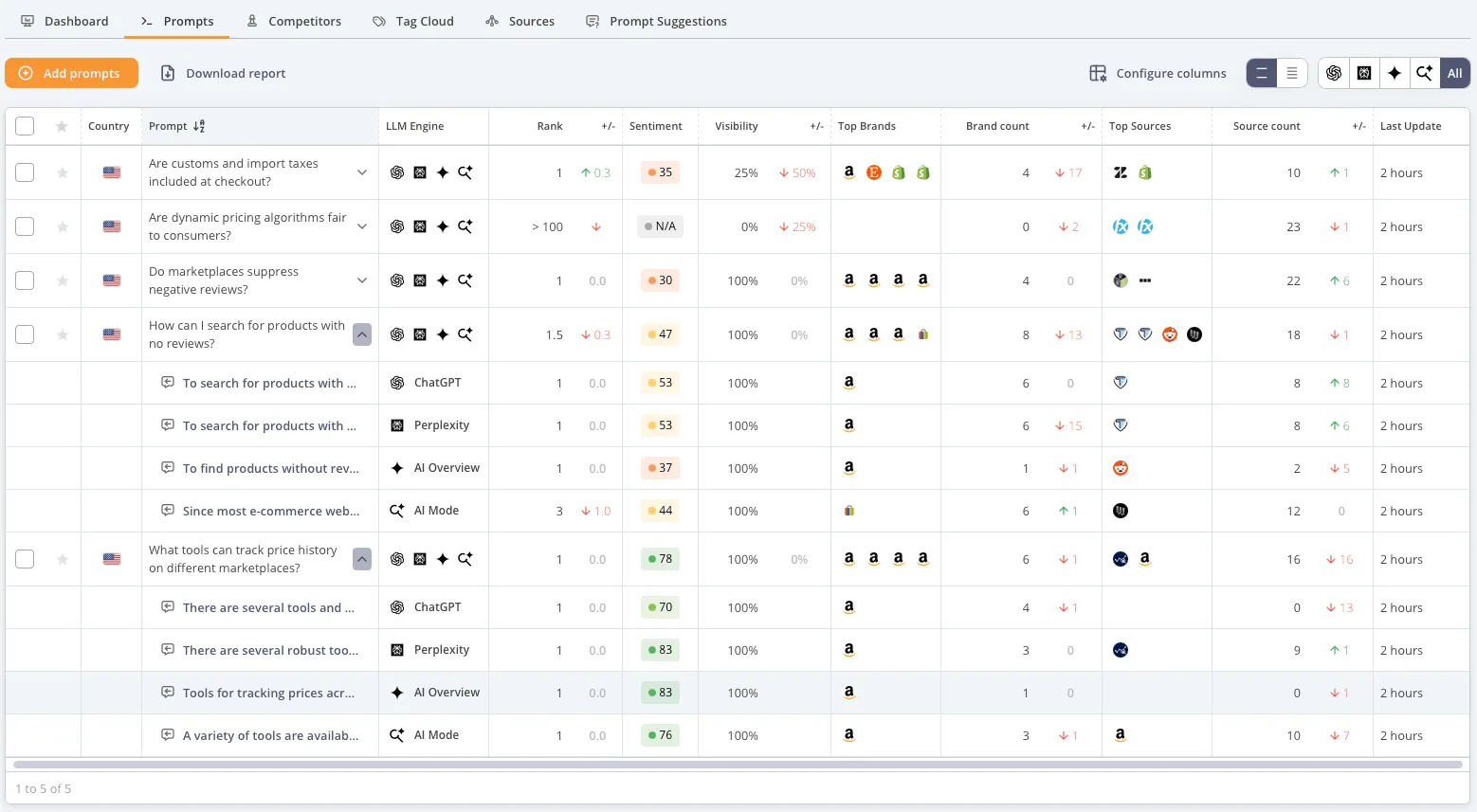
The Prompts tab gives you an overview of all your tracked prompts, showing your average rank, sentiment and visibility for each prompt across the LLMs.
You can unfold a row to see your performance in each LLM and get a snippet of the LLM response. Clicking the snippet opens a prompt view where you can read the entire response. You can also open the prompt view directly by clicking the LLM engine icon on the top row.
The Configure columns button lets you customize which columns you see.
Prompt view
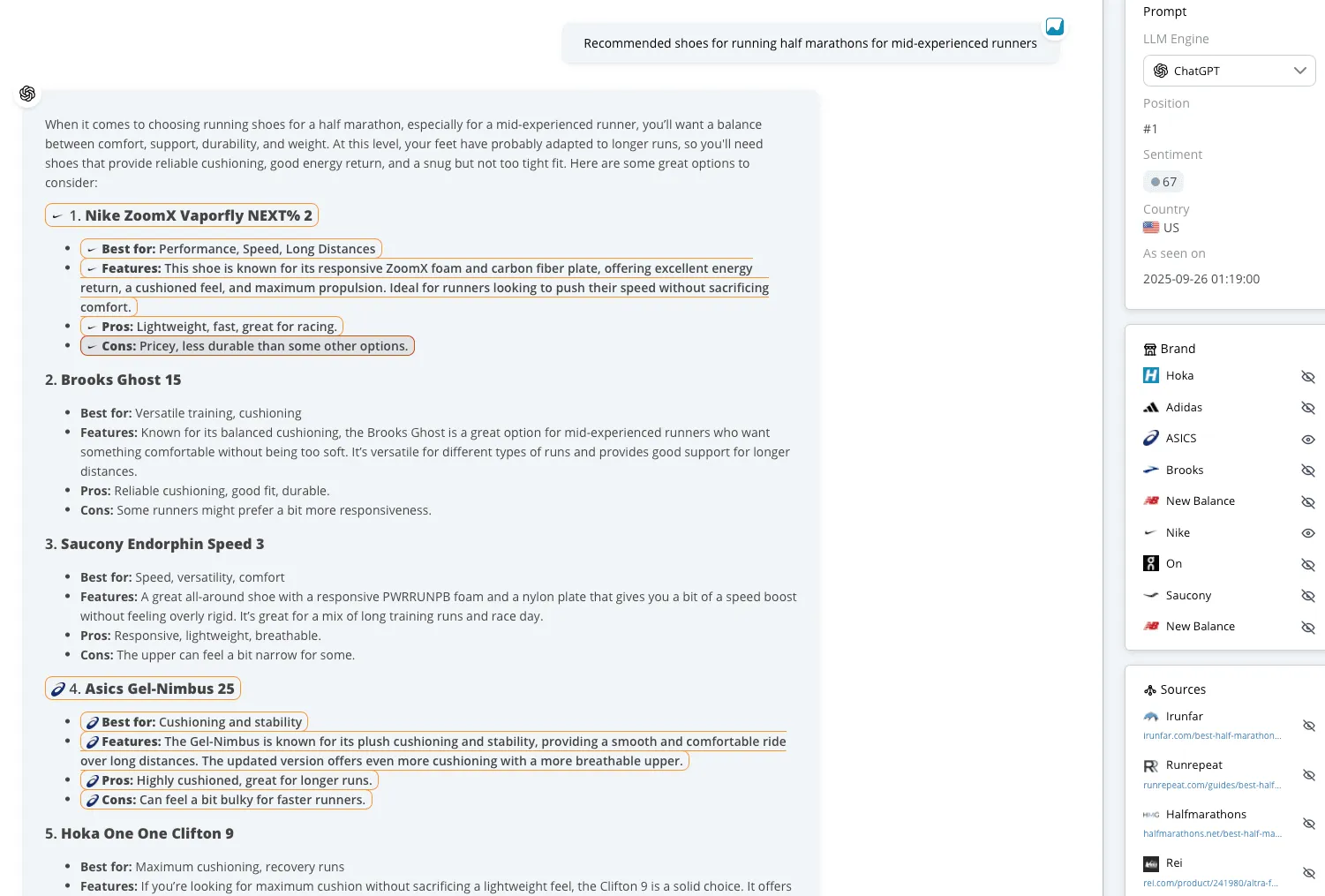
The prompt view shows your prompt and the LLM's response. The Prompt box on the right summarizes your performance for this prompt.
The Brands box shows all brands mentioned in the response that are tracked as competitors. Click the eye icon to highlight where each brand is mentioned in the text. The Sources box works the same way, highlighting the text where the source is cited.
Competitors
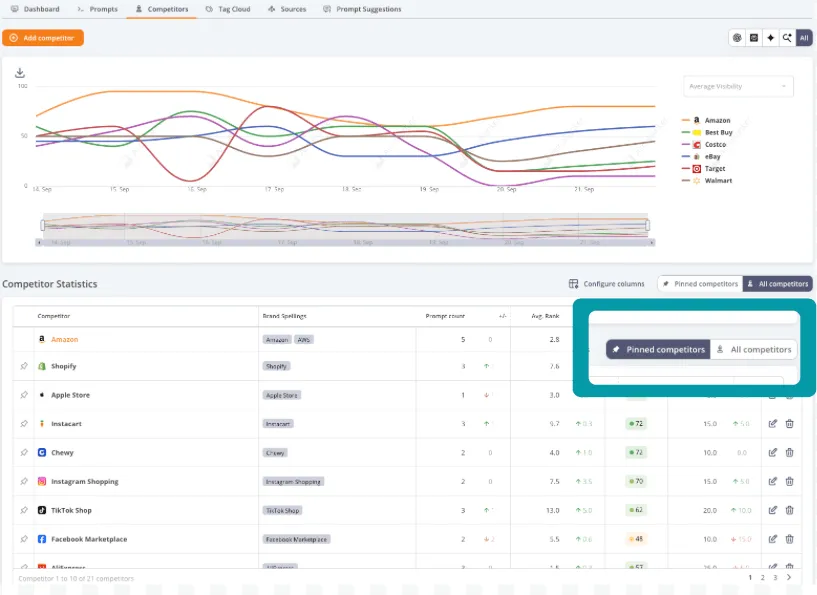
The Competitors tab presents a graph of your and your pinned competitors' performance for a specific metric. The graph shows average visibility by default; you can choose other metrics.
The Competitor Statistics table shows your pinned competitors or all competitors, depending on your chosen view. You can edit each competitor brand and add other brand spellings by clicking the edit icon.
Pinned competitors are those you actively track and include in all your graphs. All competitors are the competitors we found relevant for you, including those you unpinned. You can pin or unpin competitors directly in the table.
Sources
The Sources tab lists all domains cited in your tracked prompts. Each row shows a domain's average citation rank, the number of times it is cited in each LLM, and the percentage of prompts it is cited in. Unfold a row for the metrics at landing page level.
Use the search bar to find a specific URL quickly, and Configure columns to customize the table.
Prompt suggestions
The Prompt Suggestions tab gives you ready-made prompts, sorted by category and labelled with search intents, that you can add to your tracking whenever you like. See the prompt suggestions guide for how to browse, edit and add them, and how AccuLLM generates them.
See how AI answers talk about your brand
Request a demo and we will walk you through AccuLLM with your own brand, your prompts and your competitors.